
How team logins work
Everyone on your team gets their own login, so messages, bookings and notes show who did what, and you can switch one person off without touching anyone else. Each person has a role and a set of switches that decide which parts of revenu they see. Give people the least they need. You can always add more later. Everything is under Settings > Users.
Settings› Users
Add a new person for a new starter. Change access when someone's job changes. Remove access the day someone leaves.
Add a new person
Open Users and add them
Go to Settings > Users and add a user. Enter their first name, last name, email and mobile. Use their own work email, not a shared inbox, so each login belongs to one person.
Settings› UsersPick their role
Choose the role: admin sees and changes everything, user sees only what you allow. Most staff should be a user. Keep admin for you and one other trusted person.
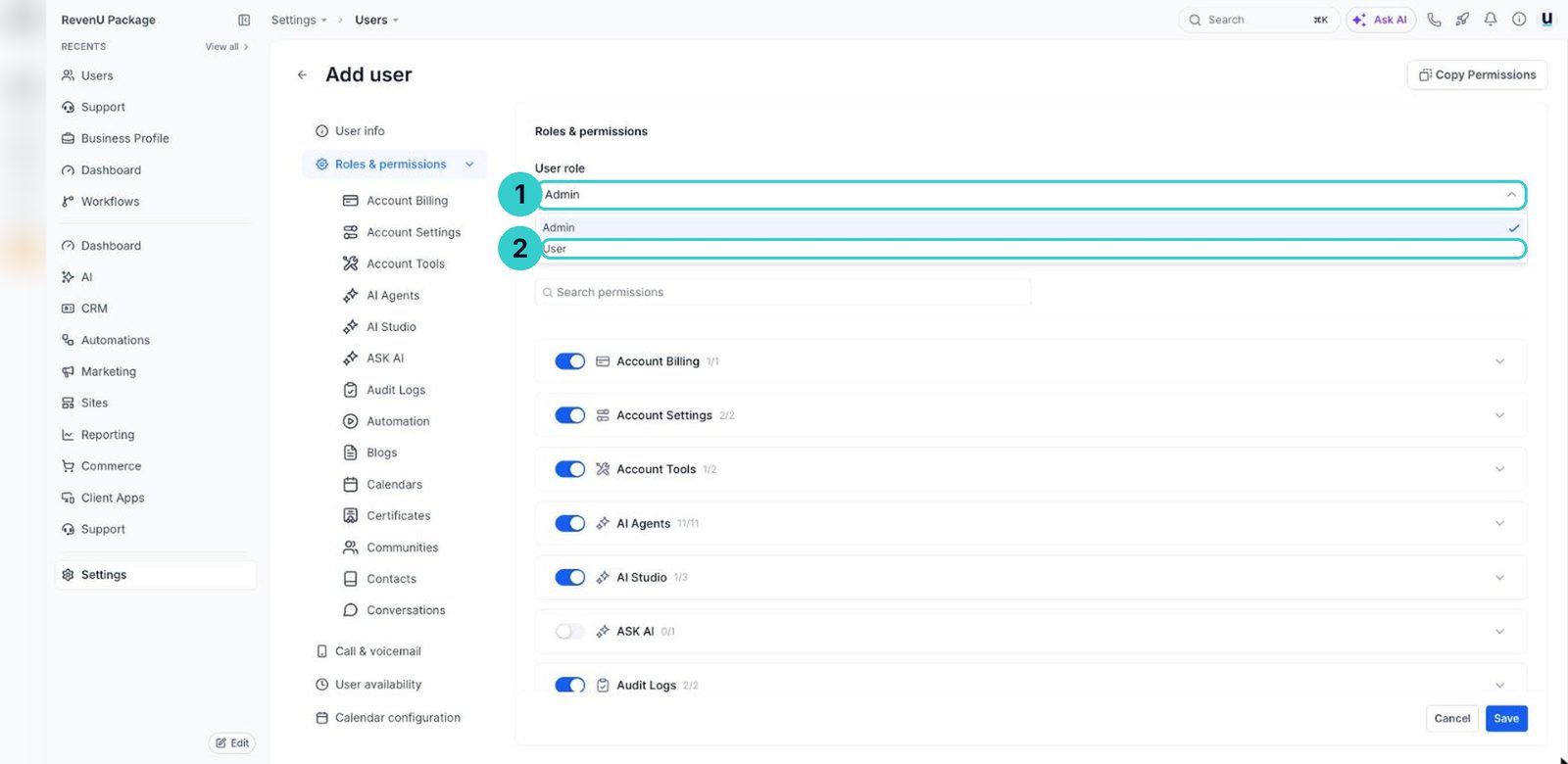
tipThey get an email with a link to set their password. If it doesn't arrive in a few minutes, check their spam folder.
Switch off what they don't need
Turn off the modules they won't use, then fine-tune the detailed permissions. Front desk might only need Conversations, Contacts and Calendars. Leave billing, exports and user management off unless they truly need them.
Starting point, front deskOn: Conversations, Contacts, Calendars. Off: Billing, Workflows, Marketing, Settings, exports.Starting point, tradie in the fieldOn: Conversations, Calendars, Opportunities. Off: Billing, Settings, Marketing, Workflows, exports.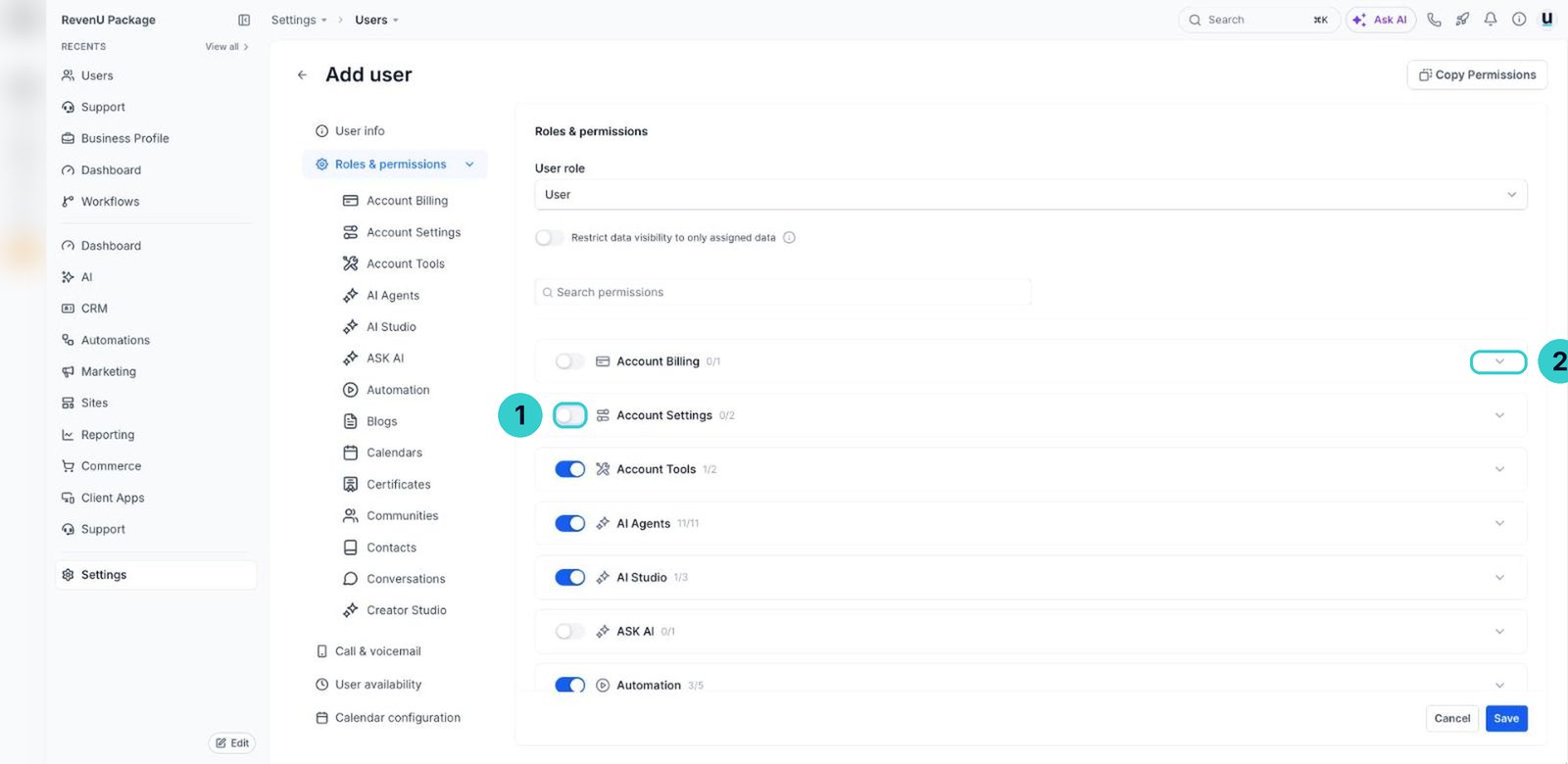
Put them on calendars
If they take bookings, add them to the right calendars so customers can book them. Open the calendar, edit it and add them as a team member.
CRM› Calendars› Meeting Calendars8 See it on the App mapGive them a phone number
If they call or text customers, set their Inbound Number under Call & voicemail so customers see the right number. Edit the user under Settings > Users and choose the number, then save. The numbers themselves live under Settings > Communications > Phone System.
Settings› UsersCheck they can sign in
Ask them to sign in at app.revenu.com.au or in the mobile app. Check they can see what they should, and nothing they shouldn't.
They can sign in at app.revenu.com.au or in the app and see only what you allowed.
Next up
People who did this also asked
Reply to customers from one inbox
Texts, emails, chats, calls and socials, all in one thread per customer.
- 1Open Conversations
- 2Start with Unread
- 3Open the customer
See who changed something
Every change is logged with who did it and what it was before.
- 1Open Audit Logs
- 2Filter it
- 3Open the entry