
From Contacts for a list, like a reactivation campaign. From the record for one person. A tag when you want to add people any time from anywhere.
A whole list from Contacts
Pick the contacts
Go to CRM > Contacts, open a smart list or filter, then tick the contacts (or Select all).
CRM› Contacts2 See it on the App mapTrigger automation
Click Trigger automation in the bar above the list. Name the action, keep Workflow as the type, pick the workflow.
Action nameWin-back, customers from last year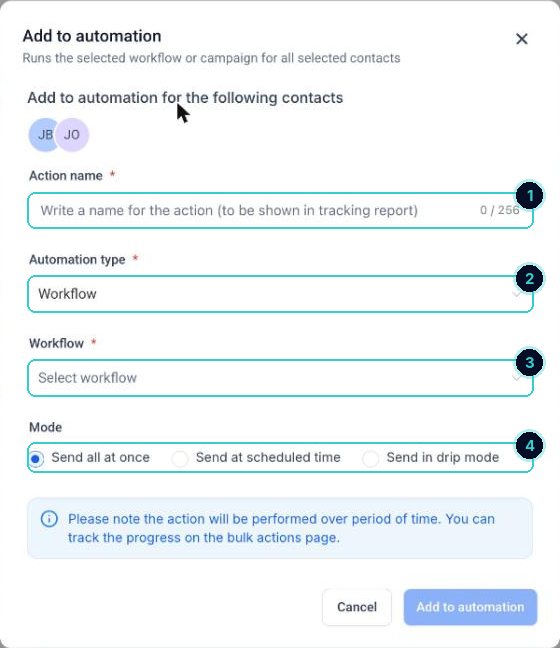
1 a name, 2 workflow, 3 which one, 4 how fast. Drip them in
Drip mode adds them in batches: a start time, how many per batch, how often, which days and which hours. Then Add to automation.
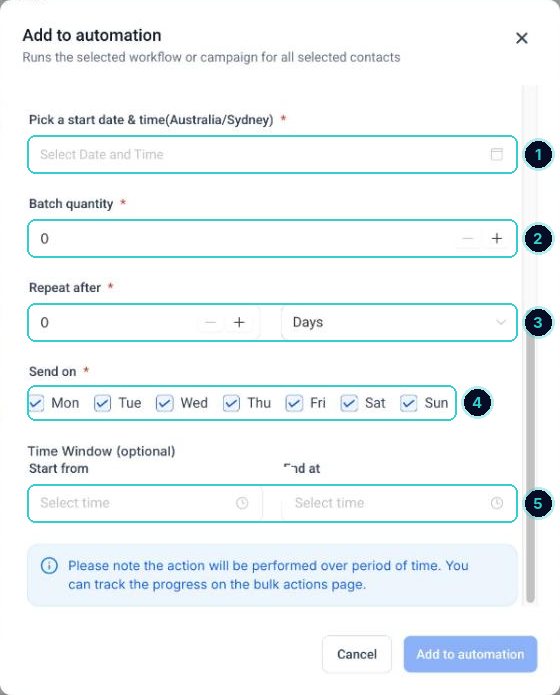
1 start, 2 how many each time, 3 how often, 4 which days, 5 which hours. tip50 a day during business hours keeps replies manageable and looks natural to phone carriers.
The people you picked are in the workflow, going through at the pace you set.
Next up
People who did this also asked
Smart lists: segment your contacts and why it pays
Save a filtered view of your contacts (like 'customers from last year who haven't booked') and message only them.
- 1Why segment
- 2Open contacts and filter
- 3Segments worth saving
Win back customers you haven't seen in a while
Reach the people who already know you. Usually the cheapest work you'll get all year.
- 1Build the list
- 2Simple way: tag and follow up
- 3AI way: start an AI campaign
Why isn't my workflow working?
The ten things that quietly stop automations, and how to check each in a minute.
- 1It's still a draft
- 2Check Enrollment History
- 3A filter doesn't match
Text a group of clients at once
Send one text to a list straight from Contacts, or let a workflow send it in batches.