
How reminders work
A reminder counts back from the appointment's start time: 1 day before, 1 hour before, whatever you set. It only goes to bookings that are still Confirmed or Unconfirmed, so cancelled appointments don't get one. Pick one way below per calendar, or people get two reminders.
Calendar reminders for the simplest setup. The template if you want confirmation plus two reminders by text and email in five minutes. Build your own when you need branches, like a different message for new clients.
Turn on the calendar's reminders
Open the calendar
Go to CRM > Calendars > Meeting Calendars and click the pencil on the calendar.
CRM› Calendars› Meeting Calendars↗ See it on the App mapNotifications & policies
Under Advanced settings, open Notifications & policies. Each row is a moment: booked, cancelled, rescheduled, reminder, follow-up. Click the pencil on Reminder.
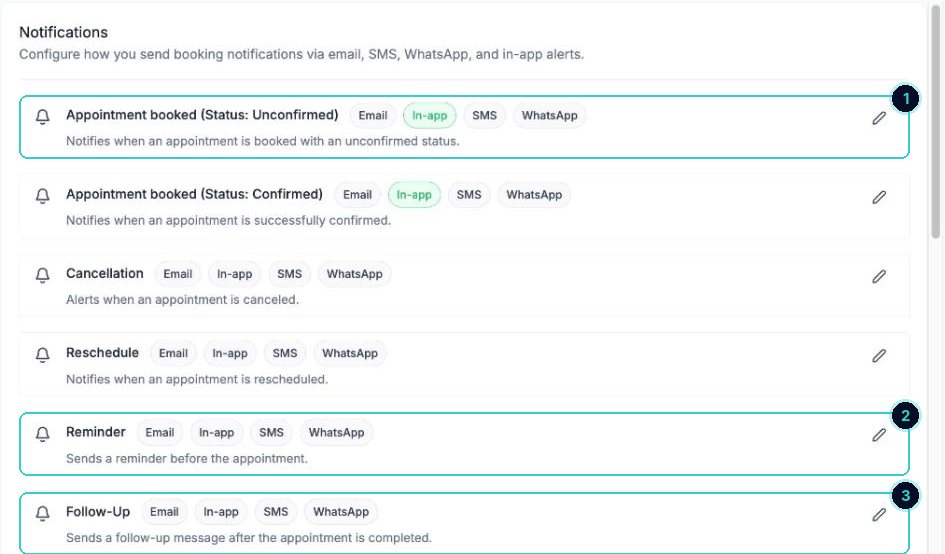
1 sent when they book, 2 the reminder (click its pencil), 3 a follow-up after the visit. Switch on SMS and set the timing
On the SMS tab, switch it on. Choose how long before the appointment it goes, and click Add more for a second reminder. Write the message, then send yourself a test. Do the same on the Email tab if you want both.
Day beforeHi {{contact.first_name}}, a reminder you're booked with {{location.name}} on {{appointment.only_start_date}} at {{appointment.only_start_time}}. Need to change it? {{appointment.reschedule_link}}Hour beforeHi {{contact.first_name}}, see you at {{appointment.only_start_time}}. {{location.name}}, {{location.full_address}}The {{ }} parts fill in by themselves with your business and customer details when it sends.
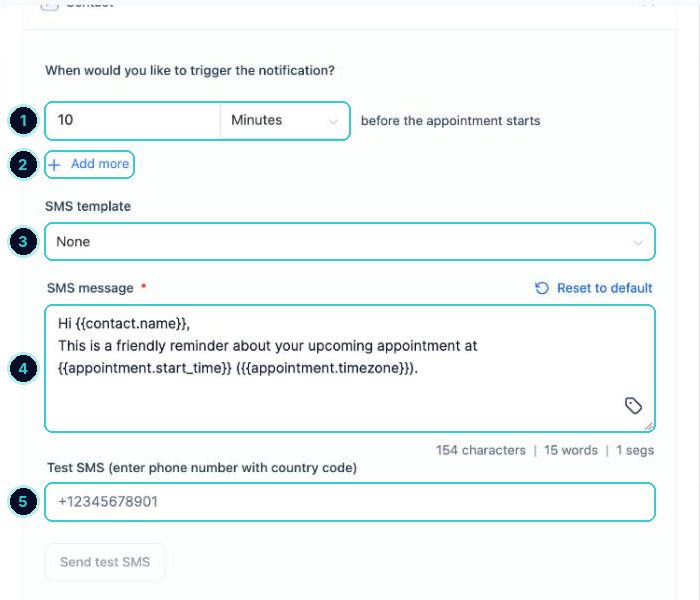
1 how long before, 2 add a second reminder, 3 a saved template, 4 the message, 5 send yourself a test. tip1 day and 1 hour before works for most businesses. Add the reschedule link: people move a booking instead of not turning up.
Every booking gets reminded at the times you chose, and people can reschedule from the message.
Next up
People who did this also asked
Mark no shows and follow them up
Record who didn't turn up and send them a friendly rebooking message automatically.
- 1Mark it
- 2Follow up automatically
- 3Message to send
Take a deposit when someone books
Ask for a deposit or full payment up front so no-shows cost them, not you.
- 1Connect your payment account
- 2Open your calendars
- 3Edit the calendar
Set your hours and booking rules properly
Working hours, one-off days, appointment length, start times, notice, buffers and daily limits, all in one place.
- 1Open the calendar
- 2Availability: your weekly hours
- 3Date specific hours
Which calendar do I need? Every type explained
Personal, round robin, class, collective, event calendar, service booking, rentals or Events. Pick in 30 seconds.
- 1Where they live
- 2Personal booking: just you
- 3Round robin: share the work