
What it is, and who it suits
One settings panel for how your calendar looks: the time zone you view it in, 15, 30 or 60 minute rows, greying out hours you don't work, hiding empty rows and showing buffers. You can colour bookings by calendar or service, or by staff member. And you can export what you're looking at as a PDF or CSV. Salons and clinics use it to print a day sheet per stylist or practitioner.
It only changes the view
None of this changes when people can book. Availability and booking pages stay as they are. The view time zone used to live in Preferences and in the Services and Rentals settings; it's now in this panel.
Settings for how it looks, colours to tell staff apart at a glance, export when you need it on paper or in a spreadsheet.
Calendar view settings
Open the view settings
Go to CRM > Calendars > Calendar View. Click the three dots next to Manage view and choose Calendar view settings.
CRM› Calendars› Calendar View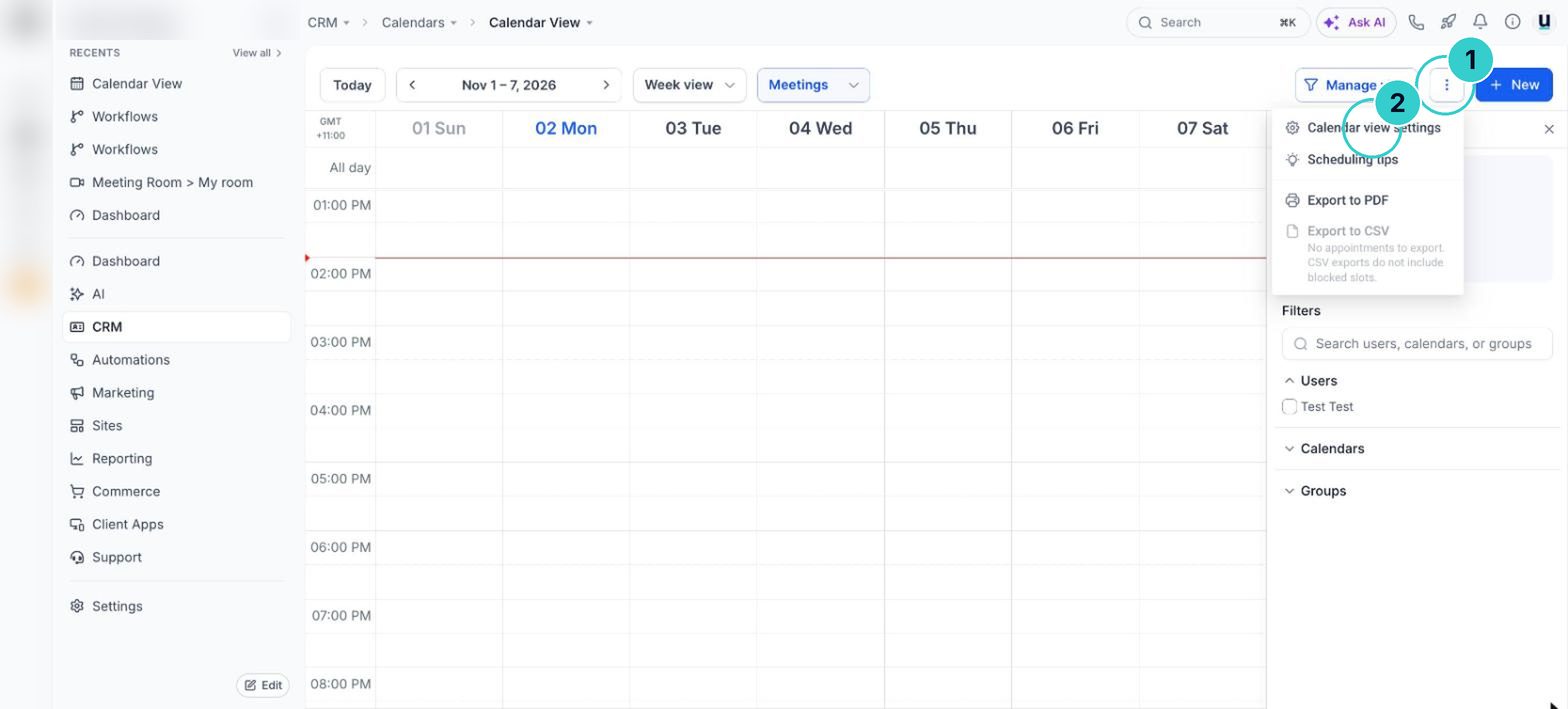
Pick what suits you
Set the view time zone, the grid interval (15, 30 or 60 minutes), and switch on grey out non-working hours, hide empty rows and show buffers if you want them.
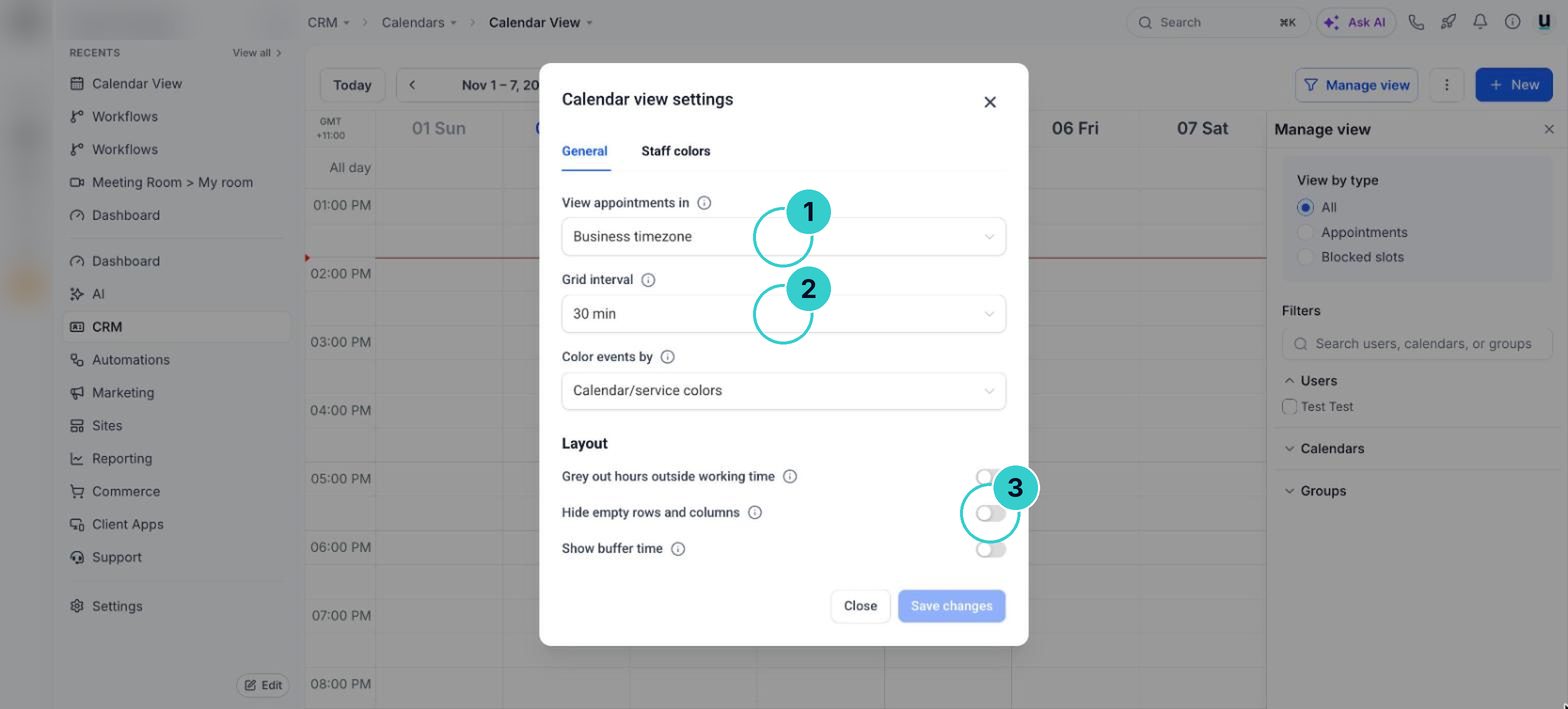
tipIf bookings look an hour out, check the view time zone first. Daylight saving catches people out every October and April.
The calendar shows your hours in your time zone, staff in their own colours, and you can print the day in two clicks.
Next up
People who did this also asked
Book a client in yourself
Add a booking for a customer who rang or walked in.
- 1Open the calendar view
- 2Fill it in
- 3Need a time outside hours?
Set up a service menu with staff, prices and durations
Customers pick a service (cut and colour, full detail, 60-minute massage), then a staff member and a time. One page, your whole menu.
- 1Open Services
- 2Make a category for each group
- 3Add each service
Take rental bookings (trailers, equipment, venues)
List what you hire out with a price per hour, day, week or month, how many you have, extras and a bond, then let people book the dates.
- 1Open Rentals
- 2Add a listing
- 3Set stock and pricing
Let customers book any of your team
One calendar that shares bookings across your staff, or books several people together.
- 1Create a calendar
- 2Pick the type
- 3Add the team
Set your hours and booking rules properly
Working hours, one-off days, appointment length, start times, notice, buffers and daily limits, all in one place.
- 1Open the calendar
- 2Availability: your weekly hours
- 3Date specific hours