
What it is, and who it suits
Workflow AI builder turns a sentence like 'when someone books, text them a confirmation and remind them the day before' into a draft workflow. It's the fastest way to start, and it suits anyone who knows what they want but not which trigger or step to pick. You still check every step before it goes live.
Test from the chat: what it really does
You can now test the workflow from inside the AI chat. A test runs the real steps: texts and emails actually send, tags really get added. So always test on your own contact, never a customer.
Start from the Workflows list for a brand-new workflow. Use Build with AI inside the builder to add to, or change, a workflow you already have.
Build using AI from the Workflows list
Open Build using AI
Go to Automations > Workflows and click Build using AI.
Automations› Workflows2 See it on the App map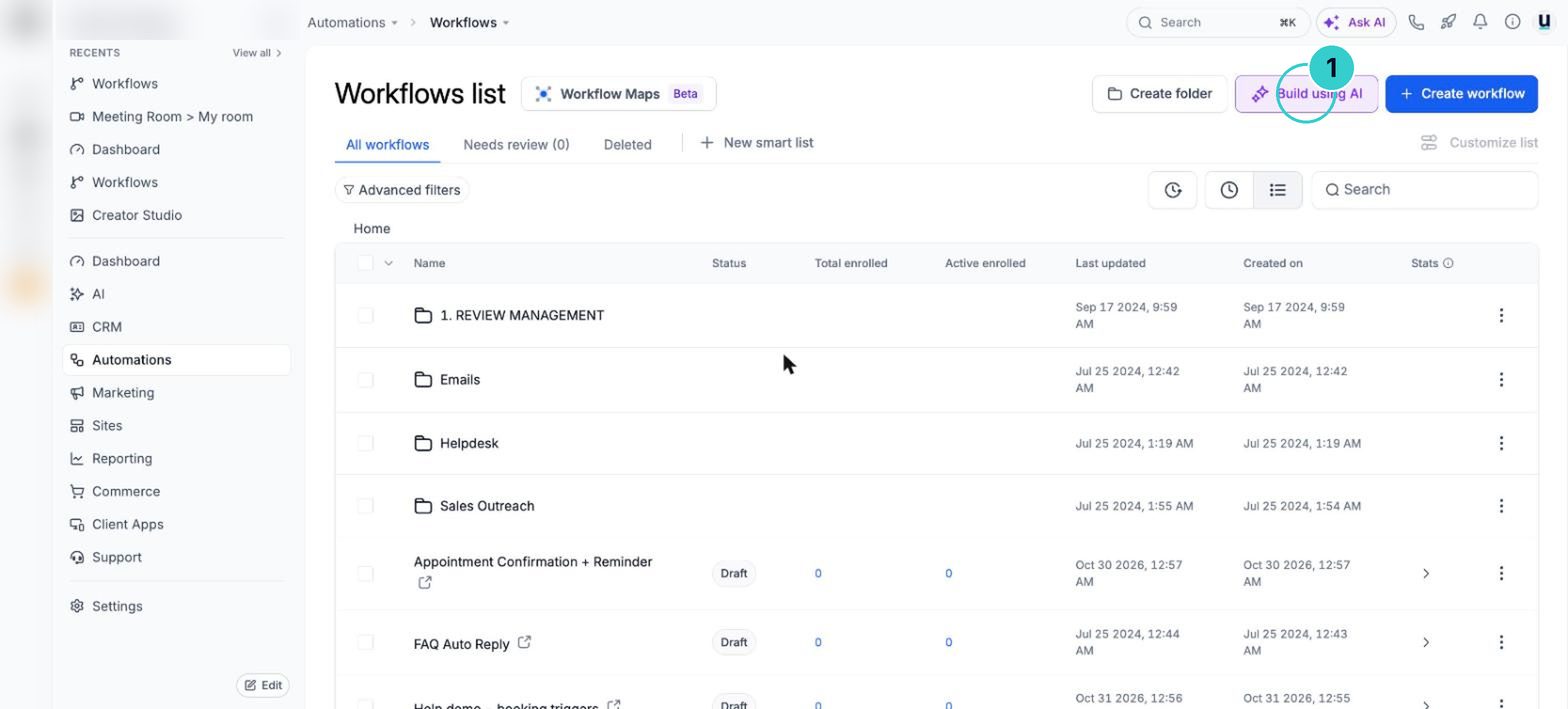
tipDon't see it? Ask revenu to switch it on for your account.
Describe it
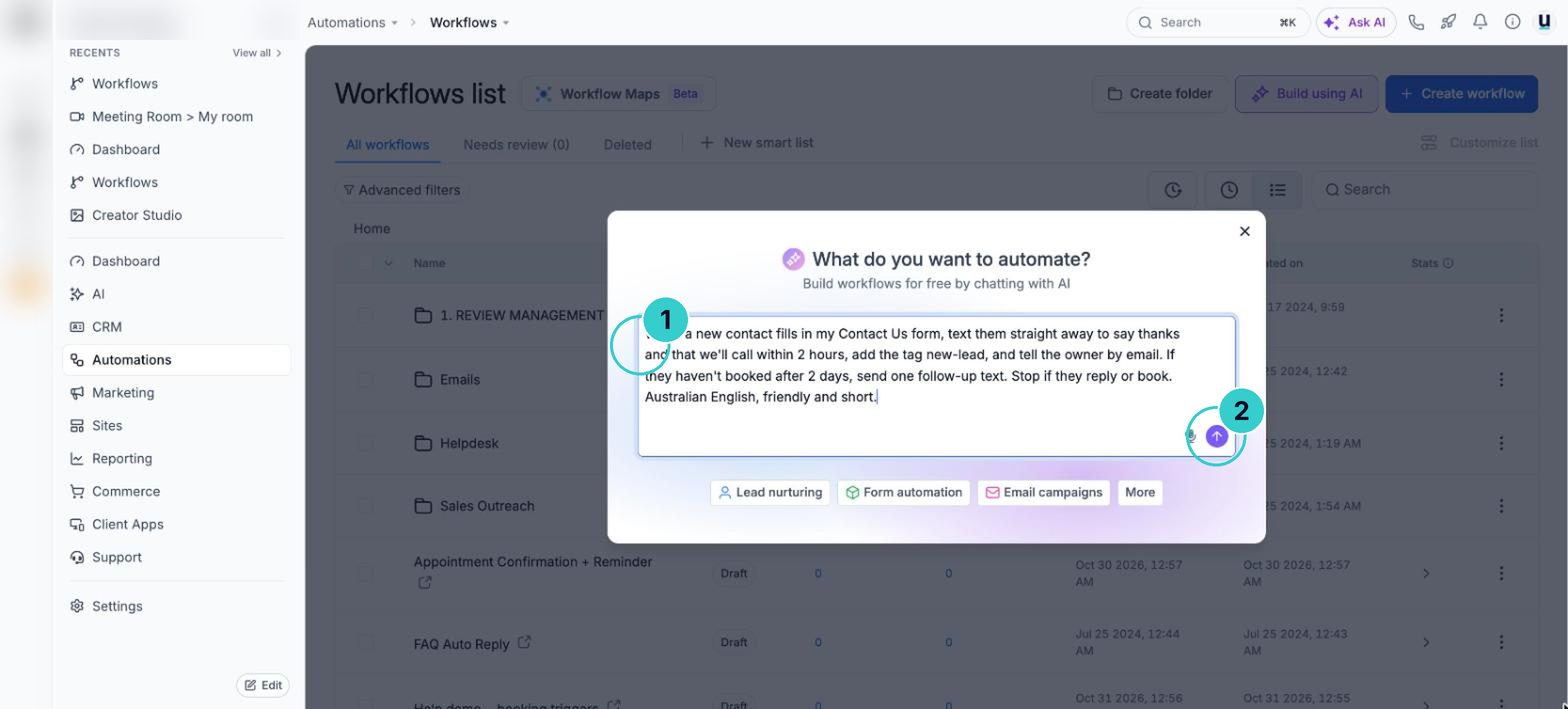
Say what starts it, what should happen, how long to wait and when it should stop. Paste this and change the brackets.
PromptWhen a new contact fills in my [enquiry form], text them straight away to say thanks and that we'll call within [2 hours], add the tag [new-lead], and tell [owner name] by email. If they haven't booked after 2 days, send one follow-up text. Stop if they reply or book. Australian English, friendly and short.Type your own details over the [ ] parts. This text goes into an AI prompt or a page, where merge fields don't fill in.
Check the draft
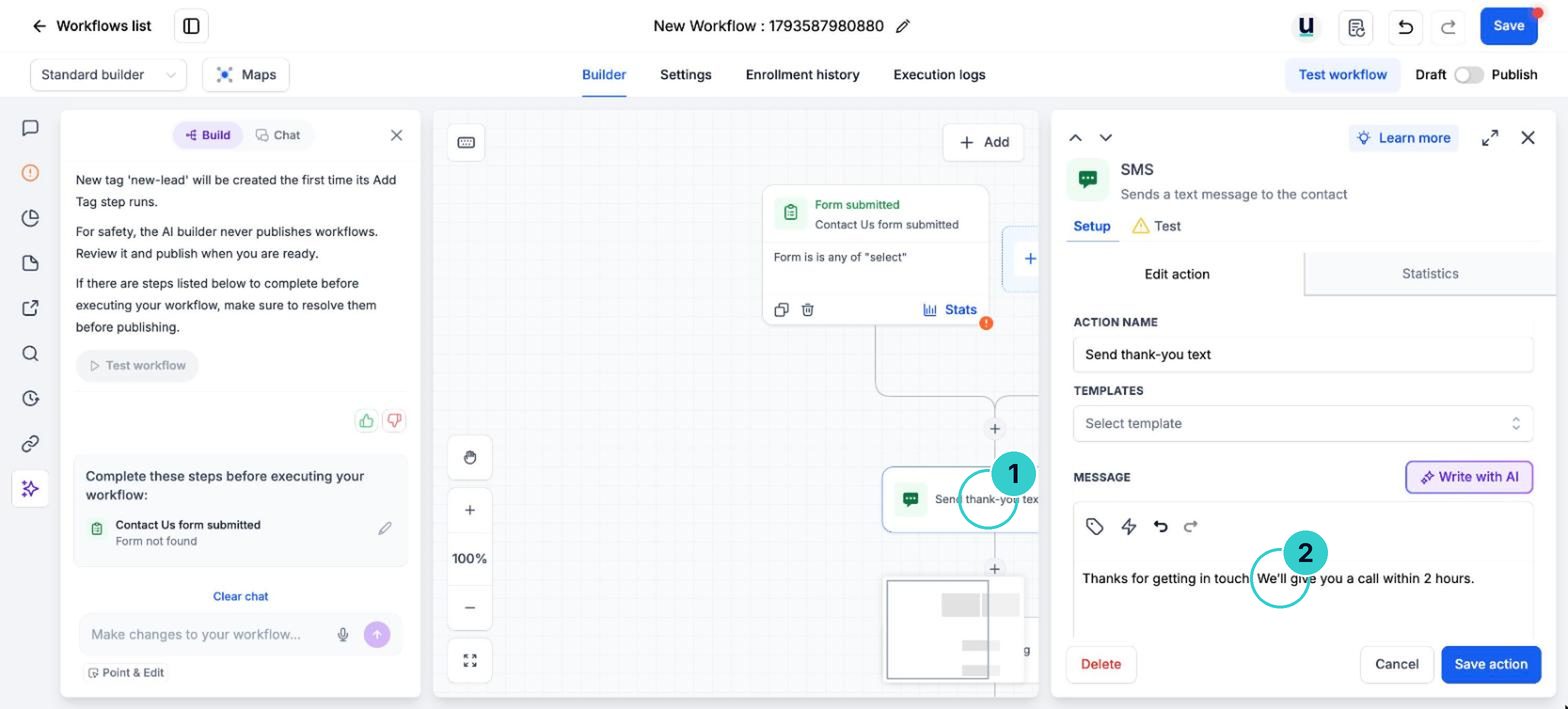
Open every step. Check the trigger's filters (the right form, the right calendar), the wait times and the merge fields. Rewrite the messages in your own words.
Test it from the chat
Ask the chat to test it and choose your own contact. The steps really run, so you'll get the texts and emails yourself. Fix anything that looks wrong and test again.
Ask the chatTest this workflow on my own contact and show me what each step did.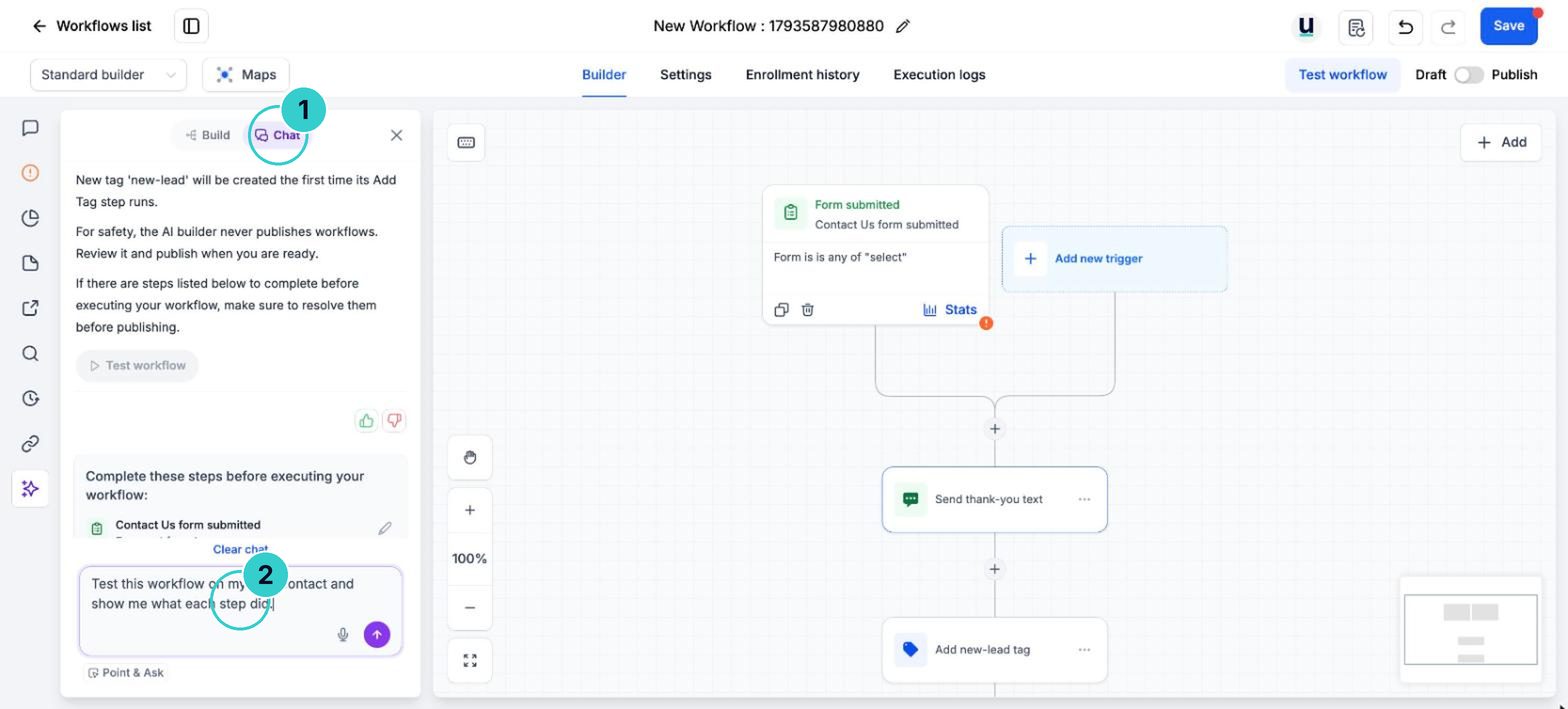
Publish
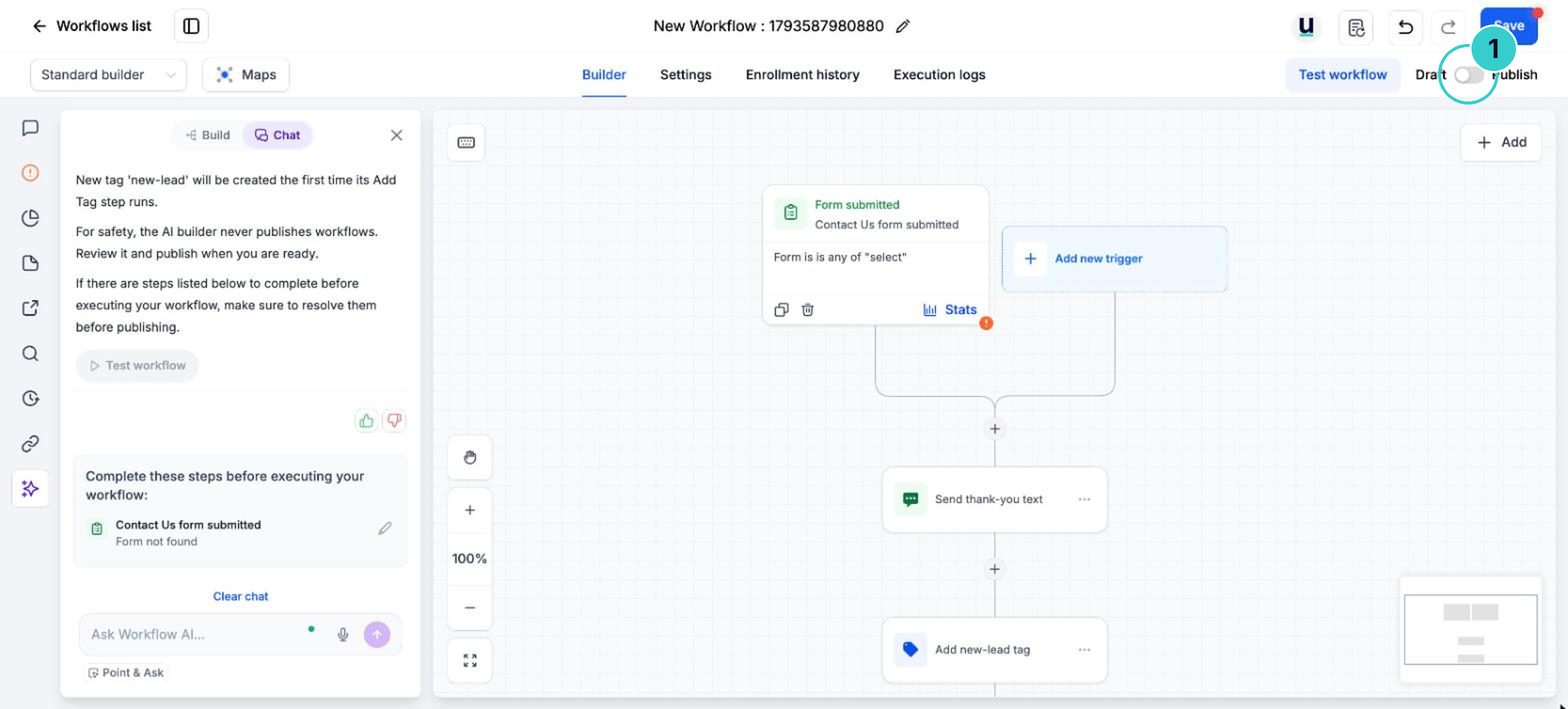
When the test looks right, switch the workflow from Draft to Publish. Nothing runs for customers until you do.
A working workflow, tested on yourself, that you understand step by step.
Next up
People who did this also asked
Why isn't my workflow working?
Eleven things that quietly stop automations, most likely first, and how to check each in a minute.
- 1How a workflow runs
- 2It's still a draft
- 3Check Enrollment History
Reply to new leads the moment they enquire
Someone fills in your form and gets a text and email straight back, even at 10pm. Three ways to set it up.
- 1Pick the template
- 2See what it does
- 3Change the trigger to your form
Set up a series of emails that goes out on its own
Welcome, follow up and stay in touch with a few emails sent in order. Build it by hand, with AI, or from a template.
- 1Create the workflow
- 2Choose who gets it
- 3Email 1: the welcome
Send one contact down several paths at once (Router)
A form with three services ticked tells all three teams, in one workflow. Router runs every branch that matches, not just the first.
- 1Open the workflow
- 2Add the Router
- 3Name each branch and set its rules