
What it is, and who it suits
Router is a workflow step that checks a contact against several branches, left to right, and sends them down every branch whose rules match. If/Else stops at the first match. So when one enquiry asks for plumbing and electrical, Router notifies both teams from one workflow instead of you building two. It suits trades, clinics and anyone whose forms let people tick more than one thing.
The three kinds of branch
Custom rules: runs when its conditions match (for example Services contains Electrical). Always run: runs for everyone who reaches the Router, handy for a step every lead should get. Fallback: runs only when no other branch matched, so nobody falls through the cracks.
Use Router when one contact can need more than one thing. Use If/Else when only one answer can be true (new or returning, booked or not). Use separate workflows only when the paths have nothing in common.
Router step
Open the workflow
Go to Automations > Workflows and open the workflow, or create one with the trigger you need.
Automations› Workflows1 See it on the App map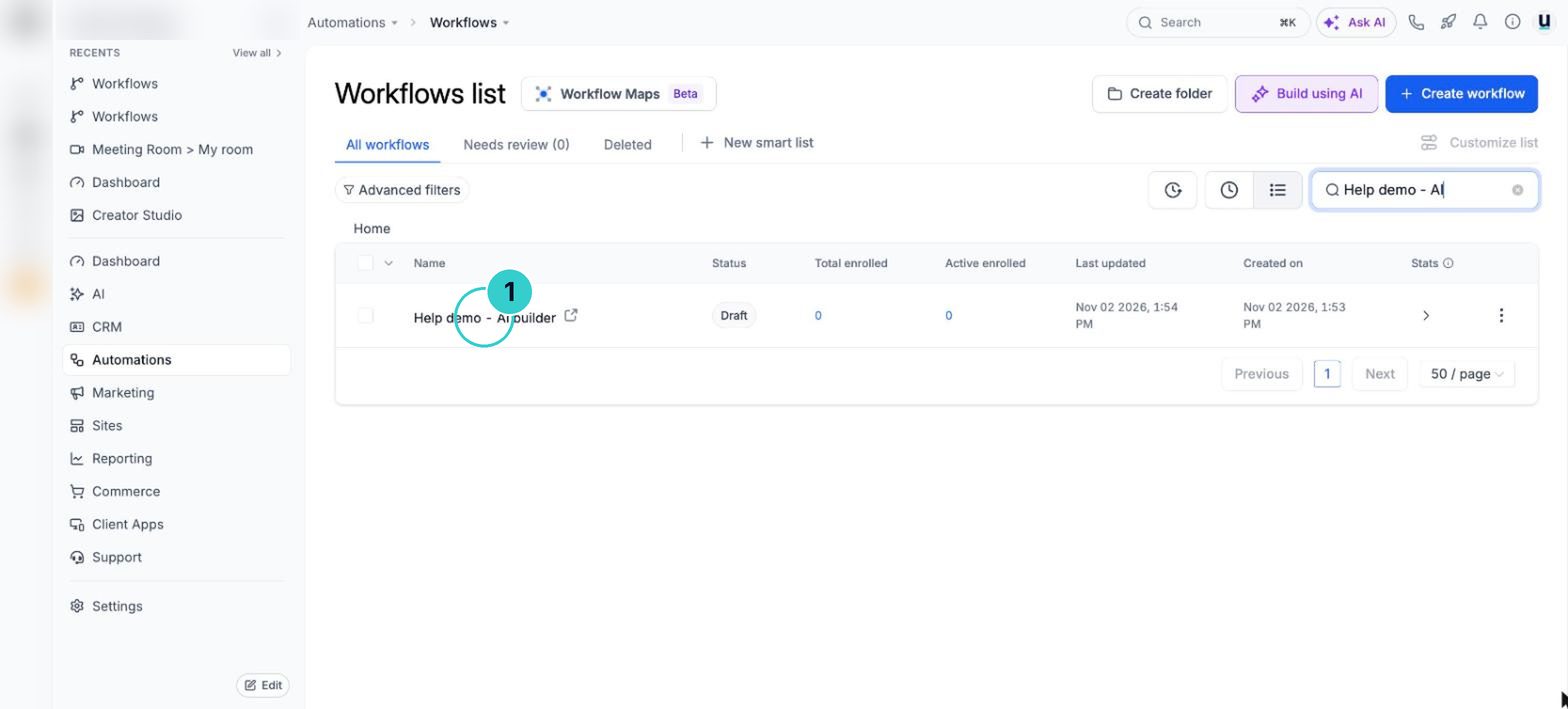
Add the Router
Click the + where the paths should split and choose Router.
Automations› Workflows› a workflow› +› Router2 See it on the App map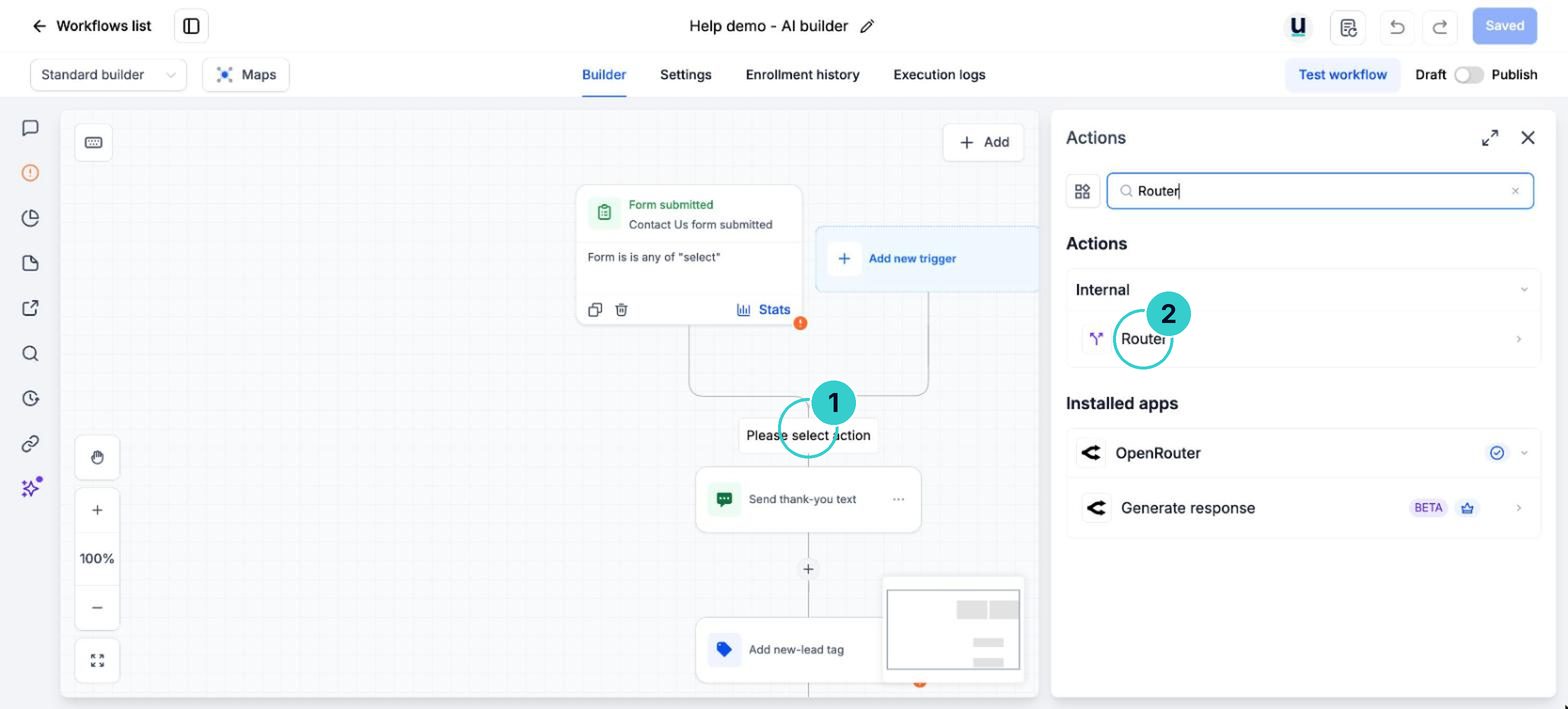
Name each branch and set its rules
Add a branch per team or service. For each one pick Custom rules and set the condition, such as Services contains Plumbing. Add an Always run branch if everyone should get a step, and a Fallback branch for anyone who matches nothing.
Branch name 1Plumbing enquiryBranch name 2Electrical enquiryFallback branch nameNot sure: call them back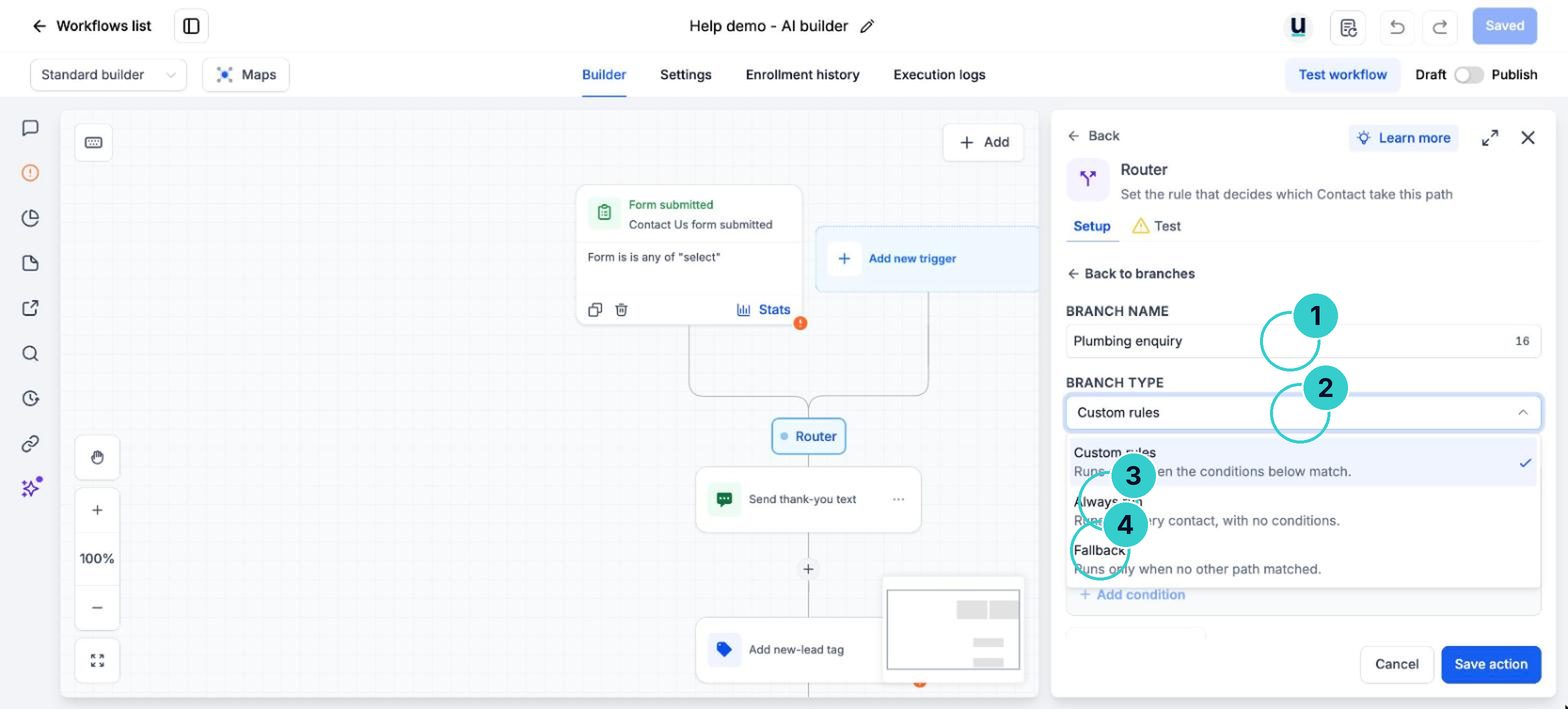
Add the steps under each branch
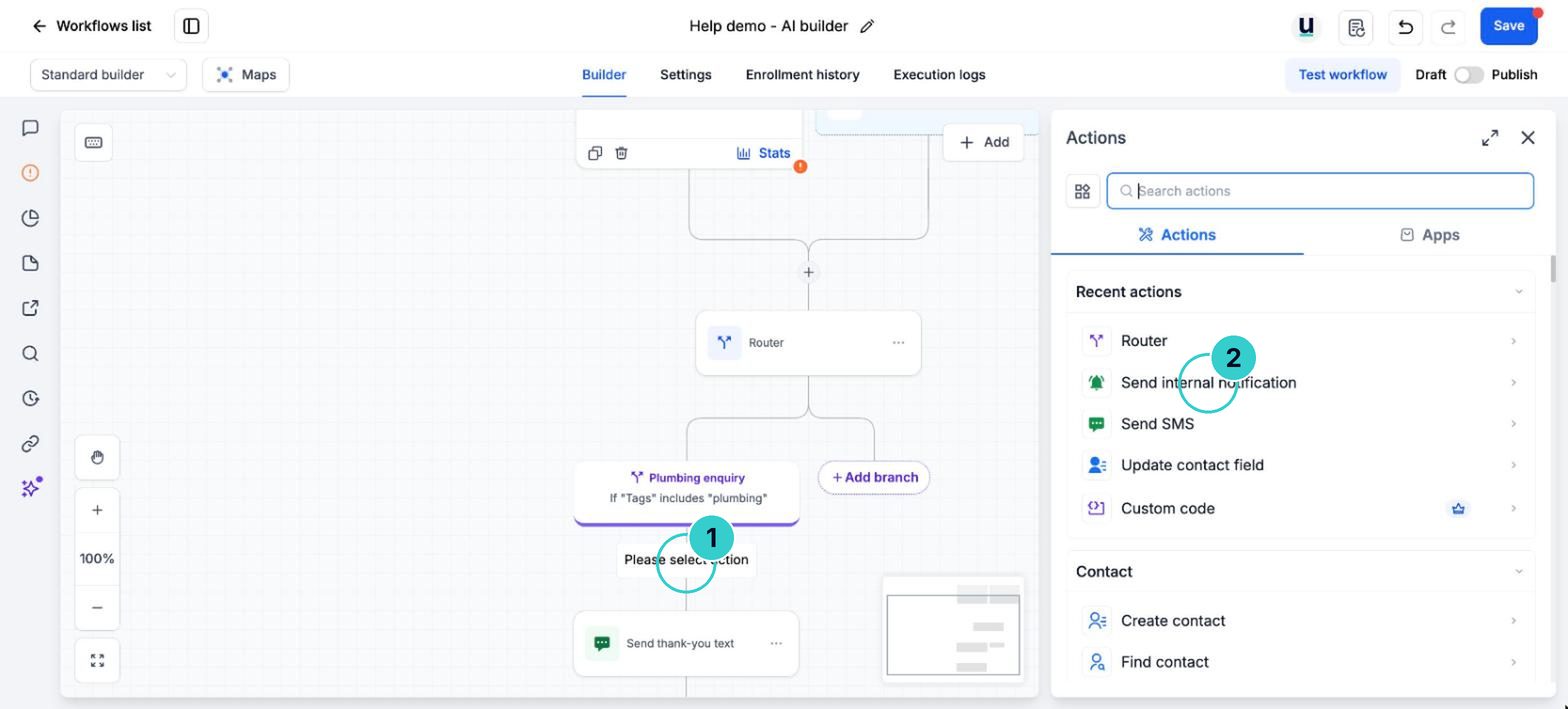
Under each branch add what that team needs: an internal notification, an assign-to-user step, a task or a tag. Branches run one after another, left to right, not at the same time, so put the most urgent branch first.
Internal notificationNew Northside Plumbing enquiry for this team from Sarah. Open the contact and call them within the hour.Shown with example details. Copy pastes the version that fills in your own business and each customer's name by itself.
Test it
Use Test workflow with your own contact, filled in to match two branches. The test shows each branch as Passed or not, with the reason. Fix any rule that didn't do what you expected, then Publish.
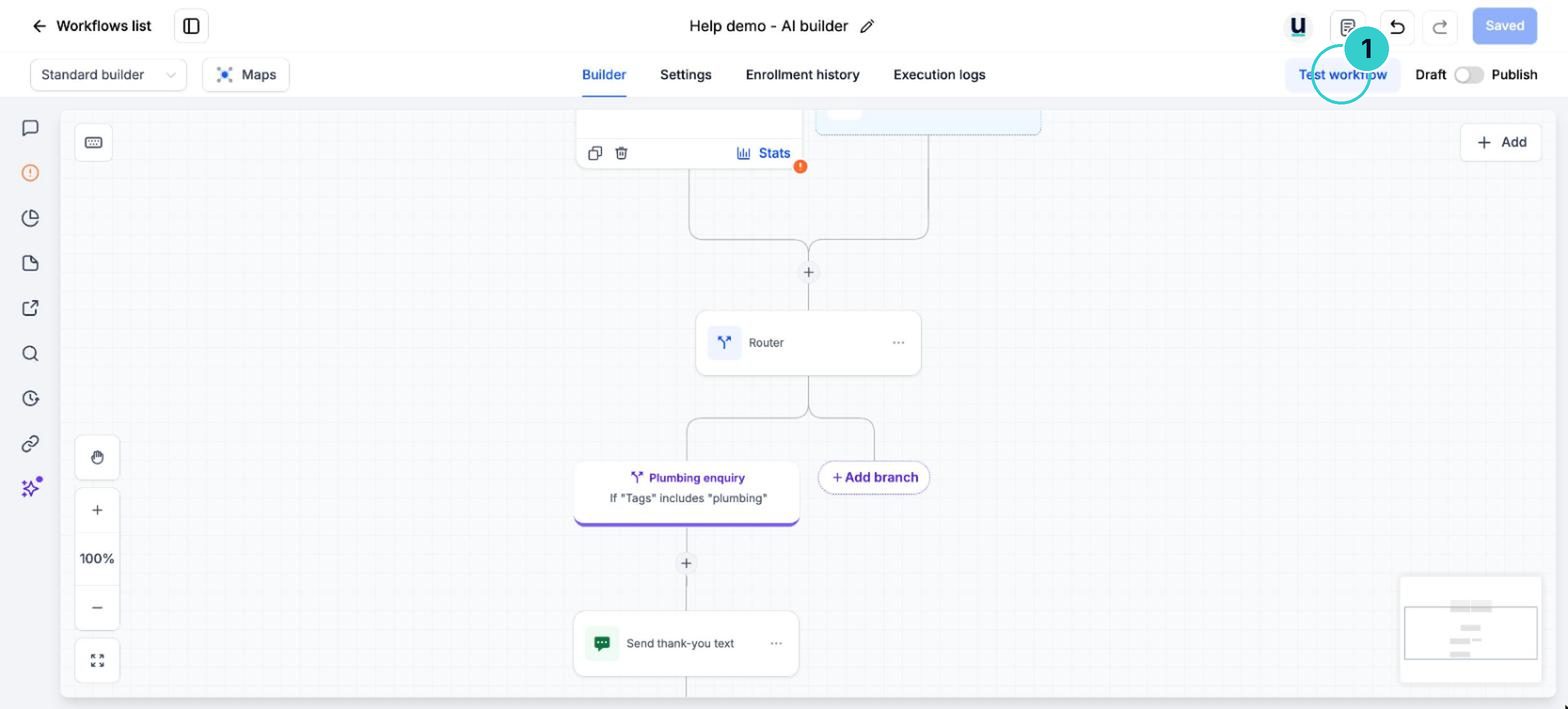
One workflow sends each contact to every team or follow-up that applies to them, and anyone who matches nothing still gets looked after.
Next up
People who did this also asked
Repeat steps for each item in a list (Loop)
One quote request with three services becomes three jobs, three tasks and three notes. Loop repeats the steps inside it for every item.
- 1Add the Loop
- 2Point it at the list
- 3Put the steps inside the box
Auto-assign new leads to your team
Share new leads between staff automatically, so someone owns every enquiry.
- 1Make the workflow
- 2Add Assign to User
- 3Tell them
Get a text or email when a new lead comes in
An internal notification tells you or your team the moment someone enquires.
- 1How it works
- 2Make the workflow
- 3Add the alert
Why isn't my workflow working?
Eleven things that quietly stop automations, most likely first, and how to check each in a minute.
- 1How a workflow runs
- 2It's still a draft
- 3Check Enrollment History
Build a workflow by describing it to AI (and test it in the chat)
Say what should happen in plain words. AI drafts the trigger and steps, then you can test it from the same chat before it goes live.
- 1Open Build using AI
- 2Describe it
- 3Check the draft