
How it works
A workflow watches for new enquiries. The second one arrives it texts and emails them, by name, saying who you are and what happens next. Replies land in Conversations so you can pick it up from there.
The template is the quickest full setup. Build your own if you want one reply per form. Add an AI agent on top when you want the conversation answered too, not just the first reply.
Start from the Speed-to-Lead template
Pick the template
Automations > Workflows > Create workflow > Select from Template. Search speed to lead and click Speed-to-Lead SMS + Email. It's added as a draft.
Automations› Workflows1 See it on the App map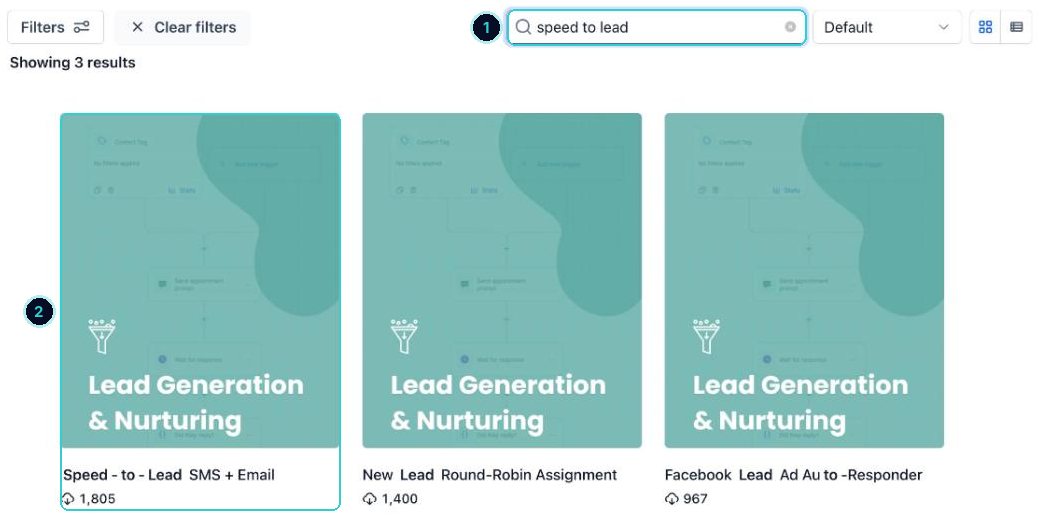
1 search, 2 the template. See what it does
It texts a thank you straight away, waits a minute, then sends a welcome email. The steps with a red dot need a tag picked before they'll run: set them or delete them.
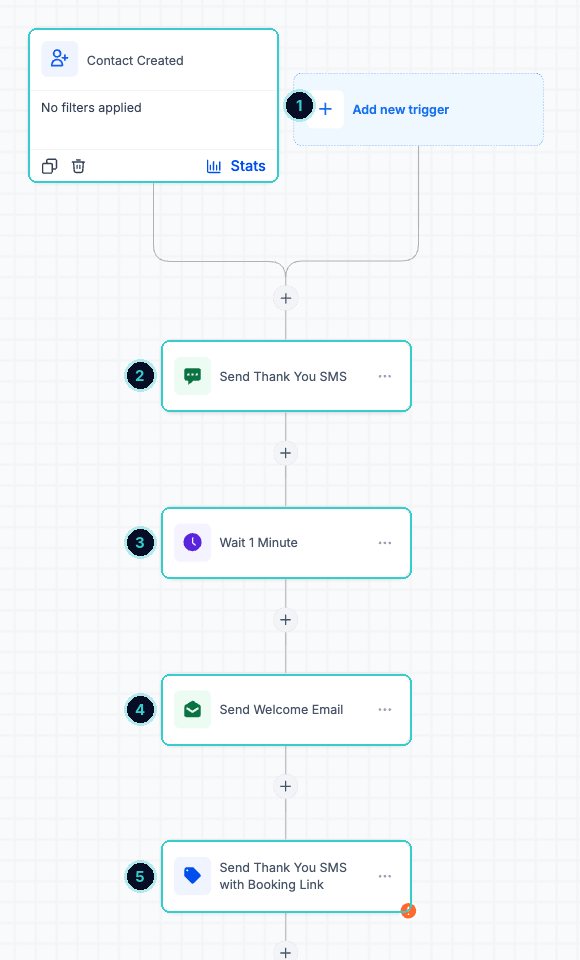
1 what starts it, 2 the text, 3 a short wait, 4 the email, 5 red dots mean finish setting it up. Change the trigger to your form
The template starts on Contact created, which also fires when you import or add people by hand. Click the trigger, change it to Form submitted, then Add filters > Form is and pick your form. Save trigger.
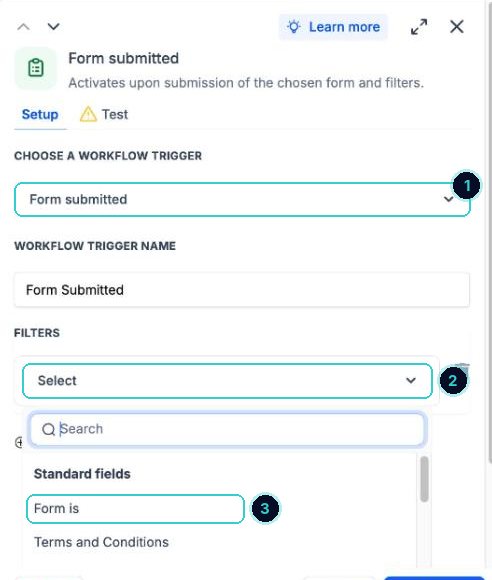
1 Form submitted, 2 add a filter, 3 Form is your form. tipLeads from Facebook? Use the Facebook lead form submitted trigger instead.
Make the messages yours
Click the text, rewrite it in your words, and use the tag icon for merge fields. Do the same for the email.
First textHi {{contact.first_name}}, thanks for getting in touch with {{location.name}}. We'll call you shortly. If it suits, grab a time here: {{user.calendar_link}} Reply STOP to opt out.Email subjectThanks {{contact.first_name}}, we've got your enquiryThe {{ }} parts fill in by themselves with your business and customer details when it sends.
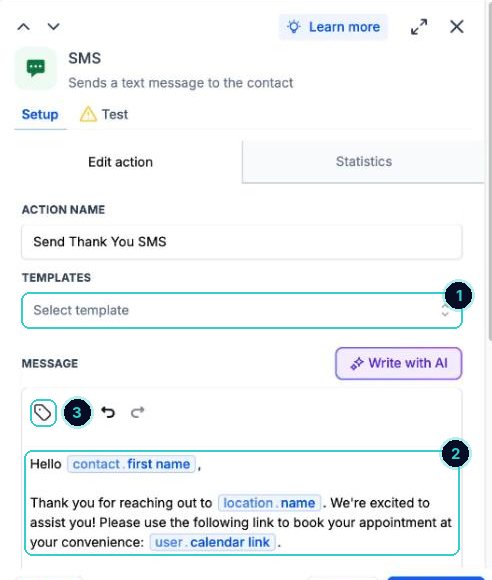
1 a saved template, 2 the message, 3 add merge fields. Test, then publish
Fill in your own form with your mobile and email, check both arrive, then flip Draft to Publish.
New enquiries get a reply within seconds, and their answers land in Conversations.
Next up
People who did this also asked
New leads aren't coming through
A form, chat or call went quiet. Work down this list before anything else.
- 1Send a test from your phone, off the office wifi
- 2Check the contact landed
- 3Look in spam and promotions
Get Facebook and Instagram leads straight into your account
Leads from your Meta ad forms land in Contacts and get an instant reply.
- 1Connect Facebook
- 2Pick your Page and Instagram
- 3Start a workflow from the form
Put an AI chat agent on your website
A chat bubble that answers questions and books people in, in your voice.
- 1Create the agent
- 2Train it
- 3Make the chat widget
Reply to customers from one inbox
Texts, emails, chats, calls and socials, all in one thread per customer.
- 1Open Conversations
- 2Start with Unread
- 3Open the customer