
How invoices work
Each invoice gets its own page with a Pay button. The customer opens it from an email or text, pays by card, and the invoice flips to Paid on its own. Unpaid ones show as Due, then Overdue after the due date.
One-off for a finished job. Recurring for the same amount every week or month. Copy the link when you want to send it from your own phone or email. Text to pay when you're already chatting and just need a quick amount.
A one-off invoice
New Invoice
Go to Commerce > Invoices & Estimates, click New, then New Invoice.
Commerce› Invoices & Estimates2 See it on the App map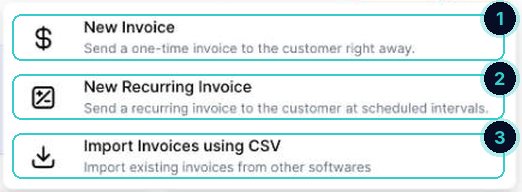
1 one-off, 2 recurring, 3 bring old invoices in from a spreadsheet. Customer, number and dates
Pick the customer (or Add Customer). Check the invoice number, issue date and due date. Pick a layout if you've made one with your logo.
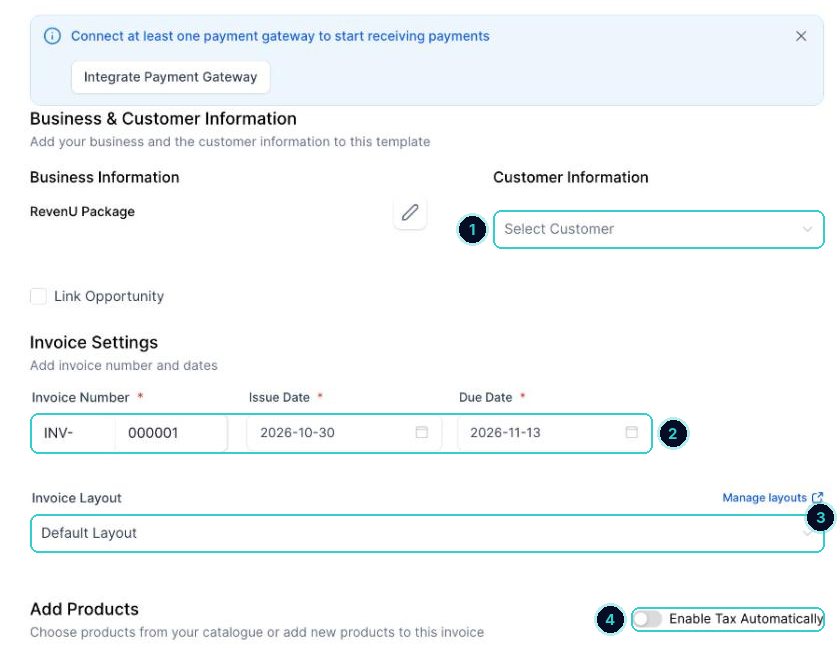
1 the customer, 2 number and dates, 3 the layout, 4 work out GST automatically. Add the work, GST and any discount
Click Add Product to add your services (or type a new one). Add Tax for GST and Add Discount if you're giving one. Add Payment Schedule splits it into a deposit and the rest. Tick Terms and Conditions to add your terms.
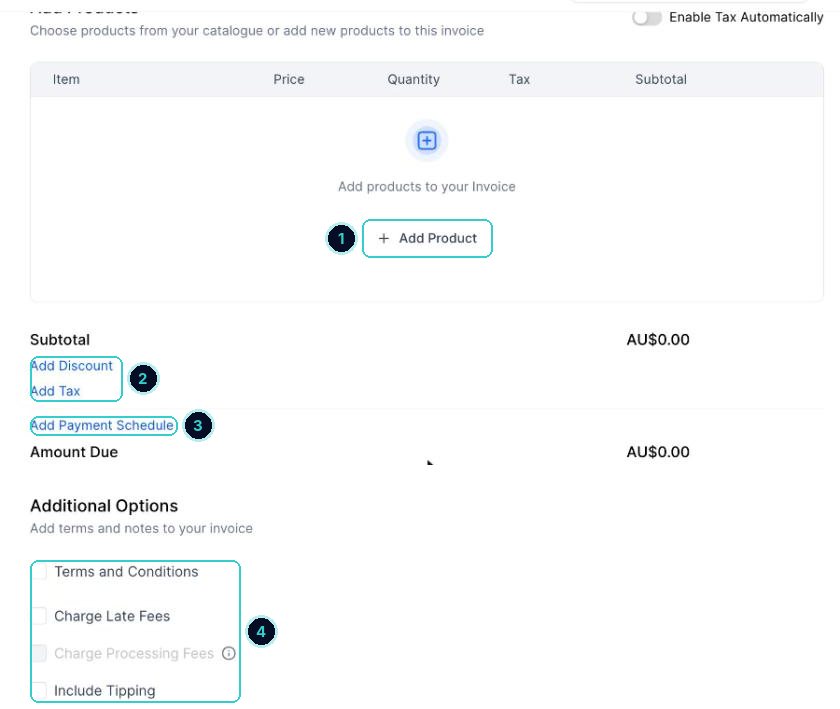
1 add the work, 2 discount and GST, 3 split into instalments, 4 terms, late fees, tipping. tipAdd GST once as a tax rate of 10%. It's then one click on every invoice after.
Send
Click Send to send it to the customer by email or text. They get a link to view and pay. Save keeps it as a draft instead.
Text with the invoiceHi {{contact.first_name}}, thanks again. Your invoice from {{location.name}} is here, you can pay by card from the link.The {{ }} parts fill in by themselves with your business and customer details when it sends.
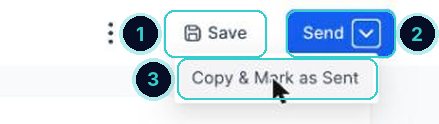
1 save a draft, 2 send it, 3 copy the link instead.
The customer gets a link, pays by card, and the invoice shows as Paid in Invoices & Estimates.
Next up
People who did this also asked
Connect Stripe to take payments
Link your Stripe account so invoices, payment links, bookings and stores can charge cards.
- 1Open payment integrations
- 2Sign in to Stripe
- 3Test mode first
Create a payment link
A link customers tap to pay for one of your products. Share it in a message, an email, a QR code or on your site.
- 1Open Payment Links
- 2Pick the product and options
- 3Check it's on Live
Send a quote (estimate) customers can accept online
A professional quote they approve with one click, that turns into an invoice.
- 1Create the estimate
- 2Add a clear note
- 3Send it
Refund a payment
Give money back, in full or in part, from the transaction.
- 1Find the payment
- 2Refund
- 3Subscriptions